
You might be wondering the following:
Smart properties are custom properties that HubSpot's Data Agent fills for you with AI. Introduced in 2025, they let you write a prompt ("What do you want to know?"), choose where the answer should come from, and let HubSpot populate the property on your records.
You can create smart properties on contacts, companies, deals, tickets and custom objects. The Data Agent can pull its answer from:
Because smart properties are regular HubSpot properties, you can use the values in views, segments, reports and workflows just like any other field.
With smart properties, you put information that’s already in your CRM to work, turning scattered, unstructured data into clear, structured properties.
Smart properties are available from Starter and up. They're included in Marketing Hub, Sales Hub, Service Hub, Content Hub and Data Hub on Starter, Professional and Enterprise. If you only have Smart CRM or Revenue Hub, you'll need Professional or Enterprise.
Filling smart properties uses HubSpot Credits, so make sure your portal has credits available (more on cost below).
A smart property doesn't have to be a block of text. You choose the field type when you create it, and the AI answers in that format. Some examples:
Structured formats like numbers, checkboxes and dropdowns are especially useful, because they can drive segments, lead scoring and workflow branches directly.
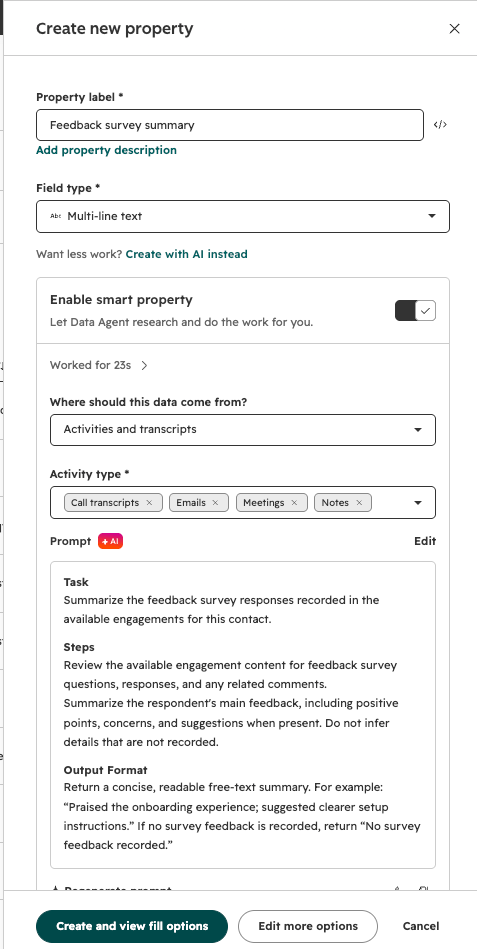
Feedback survey responses are valuable, but they're spread across several answers and rarely get read in context. With smart properties, you can:
The result is a single field your account managers can read in seconds before a meeting, and one you can show on the record sidebar, in a view or in a report.
The handover from sales to customer success is where a lot of context gets lost. The salesperson knows what the customer was promised, which concerns came up and who the key people are, but that knowledge often stays in their head.
If your team uses HubSpot calling, the call transcripts are already in the CRM. Create a deal property such as Sales handover summary, choose Activities and transcripts as the data source, select calls as the activity type, and ask the Data Agent to summarize:
Add the property to your deal pipeline's handover stage, or fill it with a workflow when the deal is marked closed won. Customer success then starts the relationship with the full picture, without scheduling an extra internal meeting.
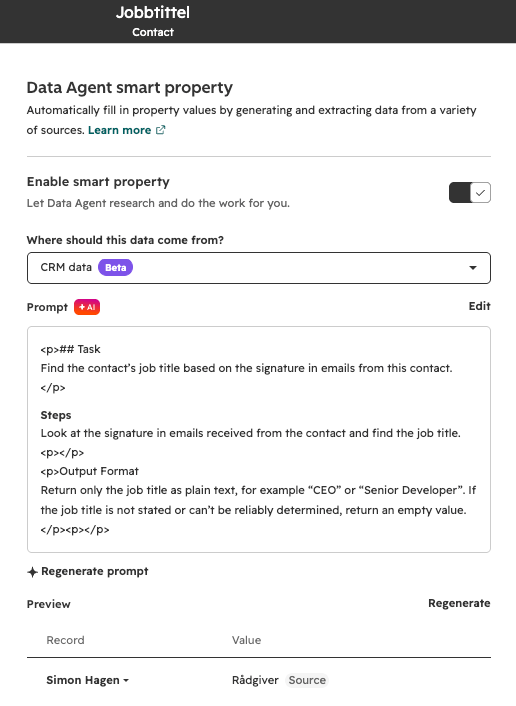
You can also ask a smart property to go through the emails you have received in your CRM data and make it search for job titles inside email signatures. Below you can find an example of how this could look.
A contact form often collects two very different kinds of messages: potential customers asking about your services, and existing customers who need help. When both land in the same inbox, someone has to read every message and pass it on, and replies get delayed.
A smart property can do that first sorting for you. Create a dropdown property, for example Inquiry type, with three options: New business, Customer service and Unclear. Use the contact's message field as the data source, and write a prompt that reads the message and decides which of the two main categories it belongs to. If the message doesn't clearly fit either one, the AI sets it to Unclear.
Turn on auto-fill when records are created, and use the value in a workflow to route each contact to the right person straight away: sales gets the new business inquiries, customer service gets the support requests. Contacts marked Unclear get a human-in-the-loop step, such as a task for someone to read the message and set the right category. That way the AI handles the obvious cases, and a person makes the call when it isn't sure.
You decide when and how the AI does its work:
Once your smart property is set up, there are several ways to enroll multiple records so the property gets populated:
From the Data Agent (one property)
From a view (several properties)
From a segment
From a workflow
Create a workflow under Automation > Workflows and add the action Data Agent: Fill Smart Property (in beta). This is the most flexible option, since you can trigger the fill on any event, such as a deal moving to closed won.
On a single record
Open the record, click Actions in the key information section, select Fill smart properties, pick the properties and confirm.
Tip: after a property is filled, you can hover over the value in a view and click the AI button to see which sources the Data Agent used.
Smart properties run on HubSpot Credits. Generating one property value for one record costs 10 credits. A smart property filled for 500 companies therefore uses 5,000 credits, and three smart properties on the same 500 companies use 15,000.
Two things are worth knowing before you hit "fill all":
Start with a small test segment, check the quality of the answers, adjust the prompt, and then scale up.
Smart properties work best when they answer a clear business question. Before you create one, ask: who will use this value, where will they see it, and what decision will it help them make? Get that right, and smart properties can save your team hours of reading and typing every week.
Need help setting up smart properties in your HubSpot portal? Get in touch with us.




 900 66 940
 post@utbrudd.com
 Kjøpmannsgata 11, 7013 Trondheim